
Computer Running Slow? 15 Technical Reasons and How to Fix Them
A computer that used to boot in seconds and now takes minutes isn’t just “getting old” slowdowns almost always trace back to one or more specific, identifiable causes. Some are cleared up with a five minute cleanup. Others are a sign that a hard drive is failing or the machine has genuinely outgrown its hardware, Computer Running Slow.
This guide walks through all 15 causes we see most often, grouped from quickest fixes to the ones that point toward hardware. If you’re not sure where to start, the diagnostic check below takes under a minute and narrows things down immediately.
Table of Contents
- Quick Diagnostic: Task Manager or Activity Monitor
- Causes 1–5: Startup and Background Load
- Causes 6–10: Storage and Memory
- Causes 11–15: Hardware and Environmental
- Quick Reference Table
- Signs It’s a Hardware Problem
- FAQs
Quick Diagnostic Check Task Manager or Activity Monitor First
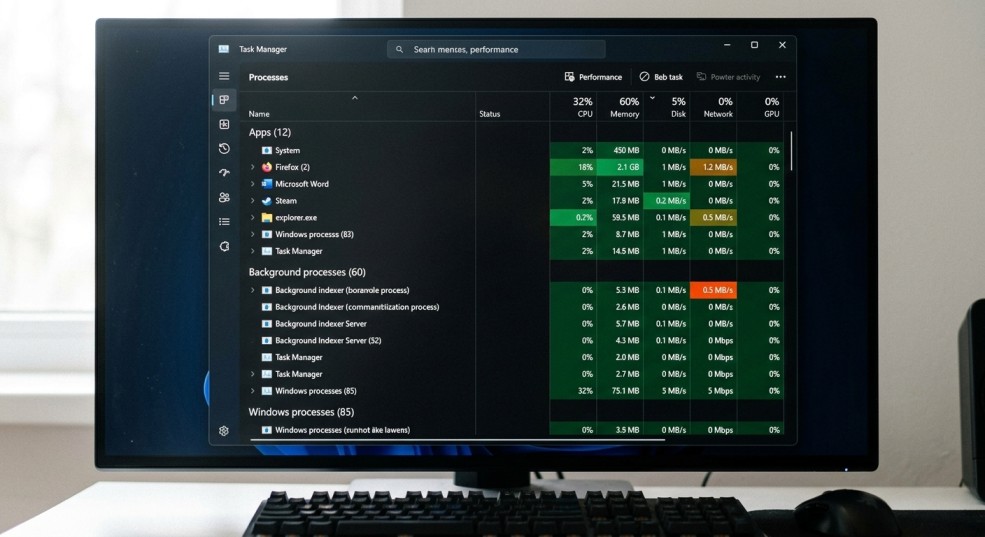
Before troubleshooting anything else, open Task Manager (Ctrl+Shift+Esc on Windows) or Activity Monitor (Applications > Utilities on Mac) and check CPU, memory, and disk usage while the computer feels slow. If one resource is consistently pegged near 100%, that immediately tells you which category of cause you’re dealing with a CPU issue points to software or background processes, while disk usage stuck at 100% with an older hard drive often points toward failing storage.
15 Technical Causes of a Slow Computer
Startup and Background Load
1. Too Many Startup Programs Apps set to launch automatically at boot compete for resources before you’ve opened anything yourself. On Windows, check Task Manager > Startup Apps; on Mac, System Settings > General > Login Items, and disable anything non essential.
2. Too Many Background Processes Beyond startup, some apps keep running (and consuming resources) in the background indefinitely. Task Manager and Activity Monitor both show ongoing CPU/memory use per app close or uninstall repeat offenders.
3. Malware or Adware Malicious or bundled adware software often runs hidden background processes and can silently consume significant CPU and network resources. A full scan with reputable antivirus/anti malware software should be a standard early step, not a last resort.
4. Outdated Drivers Especially graphics and chipset drivers outdated versions can cause inefficient hardware use or compatibility issues that manifest as general sluggishness, not just graphical glitches.
5. Browser Bloat (Extensions and Tabs) Modern browsers are resource heavy on their own; too many extensions or dozens of open tabs can consume gigabytes of RAM. Reviewing and removing unused extensions, and using tab suspension features, meaningfully reduces load.
6–10: Storage and Memory Issues
6. Insufficient RAM for Current Workload If installed RAM is close to fully used during normal tasks (visible in Task Manager/Activity Monitor), the system starts relying on slower virtual memory, which causes noticeable lag.
7. Nearly Full Storage Drive Operating systems need free space to manage temporary files and virtual memory efficiently. Performance often degrades sharply once a drive is above roughly 85–90% full.
8. Traditional Hard Drive (HDD) vs. SSD Mechanical hard drives are dramatically slower than solid state drives for the kind of random access operating systems constantly perform. A machine with an HDD will feel slow compared to modern expectations regardless of other optimizations.
9. Fragmented Hard Drive (HDD only) On older mechanical drives specifically, fragmented files scattered across the disk increase read/write time. This does not apply to SSDs, which should never be defragmented.
10. Too Many Browser Tabs and Open Applications Distinct from browser bloat above simply having many applications open simultaneously, each holding memory, compounds with the other memory related causes on this list.
11–15: Hardware and Environmental Causes
11. Failing Hard Drive A drive nearing failure often shows symptoms before fully dying: unusual clicking or grinding sounds, frequent freezes during file access, and increasingly slow read/write speeds.
12. Insufficient CPU for Current Software Demands Older processors simply can’t keep pace with modern operating systems and applications, which increase in resource requirements over time even without new hardware releases.
13. Overheating Components When internal temperatures rise too high, the CPU automatically reduces its own clock speed (thermal throttling) to prevent damage a direct, physical cause of slowdown, especially under sustained load like gaming or video editing.
14. Dust Buildup Restricting Airflow Dust accumulation in fans and heatsinks reduces cooling efficiency over time, which directly contributes to the overheating and throttling described above.
15. Aging Battery (Laptops) Affecting Performance On laptops specifically, some systems throttle performance when running on a degraded battery that can’t reliably supply peak power, similar to how phone batteries affect performance.
Quick Reference Table All 15 Causes at a Glance
| # | Cause | Category | Fix |
| 1 | Too many startup programs | Software | Disable non essential startup items |
| 2 | Background processes | Software | Close/uninstall resource heavy apps |
| 3 | Malware or adware | Software | Run a full antivirus/anti malware scan |
| 4 | Outdated drivers | Software | Update graphics/chipset drivers |
| 5 | Browser bloat | Software | Remove unused extensions, limit tabs |
| 6 | Insufficient RAM | Memory | Close unused apps; consider a RAM upgrade |
| 7 | Nearly full storage drive | Storage | Free up space below ~85% capacity |
| 8 | Traditional HDD vs. SSD | Storage | Upgrade to an SSD |
| 9 | Fragmented HDD | Storage | Defragment (HDD only, never SSD) |
| 10 | Too many open apps/tabs | Memory | Close unused apps and tabs |
| 11 | Failing hard drive | Hardware | Backup data immediately; professional diagnosis |
| 12 | Insufficient CPU for current demands | Hardware | Hardware upgrade or replacement |
| 13 | Overheating / thermal throttling | Hardware | Improve airflow, check fans |
| 14 | Dust buildup | Hardware | Professional or careful manual cleaning |
| 15 | Aging laptop battery | Hardware | Battery replacement |
Signs Your Slowdown Is a Hardware Problem, Not Software
If you’ve worked through causes 1–10 and the slowdown persists, these signs point toward hardware rather than another round of cleanup:
- Unusual clicking, grinding, or whirring sounds from the drive
- The computer freezes or crashes specifically during file heavy tasks (opening large files, copying data)
- Fans run loudly and constantly, and the case feels hot to the touch
- Performance was fine until a specific event (a drop for a laptop, a power surge, sudden heat exposure)
- The system is 5+ years old and still uses a traditional hard drive rather than an SSD
A failing hard drive in particular is worth acting on quickly beyond the slowdown, drive failure risks permanent data loss, so backing up important files should happen before further troubleshooting, not after.
Frequently Asked Questions
Will more RAM actually make my computer faster?
It can, but only if RAM is genuinely the bottleneck. Checking Task Manager or Activity Monitor for memory usage during normal tasks tells you whether you’re actually running short, or whether the slowdown is coming from somewhere else, like storage or the CPU.
Is it worth upgrading an old hard drive to an SSD instead of buying a new computer?
For many machines, yes. An SSD upgrade is one of the most noticeable performance improvements available, often making an otherwise capable older computer feel dramatically faster for a fraction of the cost of replacement.
How do I know if my computer has a virus versus just being slow from age?
A virus related slowdown often appears suddenly, may come with unusual pop ups, unfamiliar programs, or a fan running constantly even when idle. Age related slowdown tends to be gradual and consistent across all tasks rather than sudden and erratic.
Does closing background apps actually help, or is that outdated advice?
It still helps, particularly for apps that continue consuming CPU or memory in the background rather than truly pausing. The impact varies by app some behave efficiently when minimized, others don’t.
Can dust really slow down a computer?
Yes, meaningfully. Dust clogged fans and heatsinks reduce cooling efficiency, which causes the CPU to throttle its own speed to avoid overheating a direct, physical performance hit rather than a software issue.
How often should I have my computer professionally cleaned or serviced?
For most desktops and laptops in normal environments, an internal cleaning every 12–18 months helps prevent dust related thermal throttling, more often in dusty environments or homes with pets.
Is it cheaper to repair a slow computer or replace it?
It depends on the cause and the machine’s age. Software cleanup and an SSD upgrade are often far cheaper than replacement and can meaningfully extend a computer’s useful life; a professional diagnosis is the fastest way to know which category your situation falls into.
Get Your Computer Diagnosed
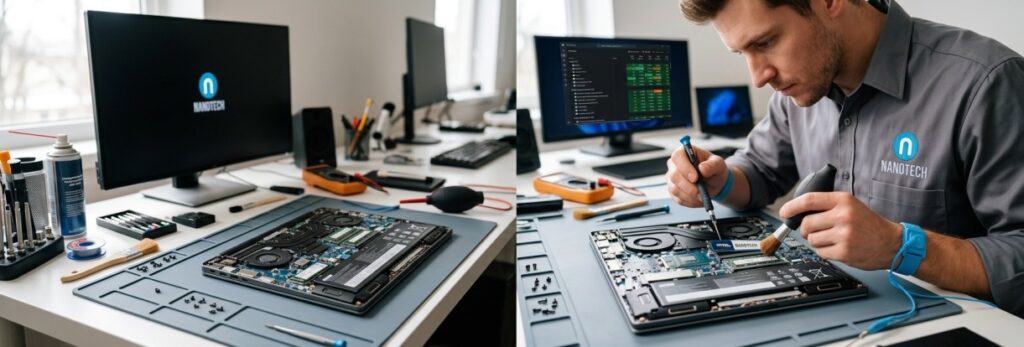
If you’ve worked through the steps above and your computer is still running slow, it’s worth having it properly diagnosed rather than guessing at upgrades. We provide free diagnosis and computer repair in Regina for both desktops and laptops, including SSD upgrades, hardware replacement, and full internal cleaning. Get an instant quote or call (306) 569 6266.
LEAVE A COMMENT