

Laptop Won’t Turn On? Complete Hardware Diagnostic Checklist
A laptop that won’t turn on can mean almost anything a dead battery, a loose RAM stick, a failed charging port, or a genuinely dead motherboard. The good news is that the two most common versions of this problem (completely dead vs. powers on with a black screen) point toward very different causes, and working through the right checklist for your specific situation usually narrows it down fast.
This guide splits into two diagnostic paths so you’re not wasting time on steps that don’t apply to what’s actually happening.
Table of Contents
- Identify Which Situation You Have
- Situation A: Completely Dead
- Situation B: Powers On, Black Screen
- Quick Reference Table
- When to Call a Technician
- FAQs
First, Identify Which Situation You Have
Before doing anything else, press the power button and watch and listen closely for any sign of life: a light on the case or keyboard, a fan spinning, a hard drive clicking, or sound from the speakers. This single observation determines which checklist below actually applies to you.
- No response at all no lights, no sound, no fan → go to Situation A
- Some sign of life (lights, fan, sound) but no display → go to Situation B
Situation A Completely Dead (No Lights, No Sound, Nothing)
This points toward a power delivery problem the laptop isn’t receiving or accepting power at all, rather than a display or software issue.
Windows Laptop Checklist
- Confirm the outlet works by testing another device in the same outlet.
- Try a different power cable/adapter if you have access to one, since cables fail more often than the laptop itself.
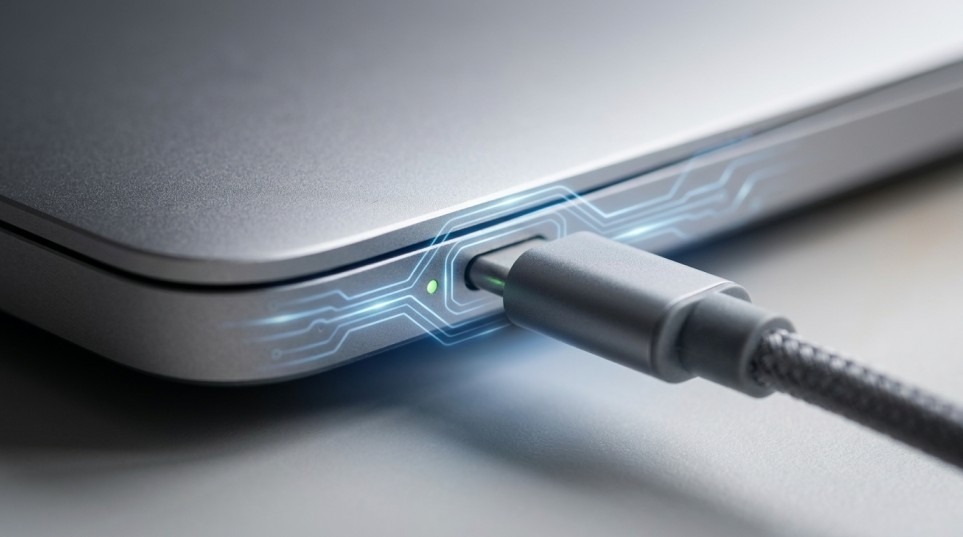
- Check the charging port for visible damage, bent pins, or debris.
- Remove the battery if it’s removable, then try running on AC power alone a failed battery can sometimes prevent the system from powering on at all.
- Perform a hard reset: unplug the charger, remove the battery if removable, hold the power button for 30 seconds, then reconnect power and try again.
- Check the charging indicator light (if present) while plugged in if it doesn’t illuminate at all with a known good cable, this points toward a failed charging port or internal power circuit.
MacBook Checklist
- Confirm the outlet and cable work by testing with a different Apple charger or cable if available.
- Check for a charging indicator the light on the MagSafe connector (older models) or a subtle charging chime, if your model has one.
- Try an SMC reset: on models with a battery you can’t remove, this typically involves holding Shift+Control+Option and the power button together for 10 seconds (exact steps vary by model and chip Apple Support has model specific instructions).
- Inspect the charging port for lint, damage, or corrosion, especially if the laptop has been in a bag frequently.
- Try charging for at least 30 minutes before testing again a MacBook with a completely depleted battery sometimes needs a period of passive charging before it will power on or show any indicator light.
Situation B Powers On but Screen Stays Black
Signs of life (fan, lights, sound) with no display point toward a display, graphics, or boot process issue rather than a power delivery problem.
Windows Laptop Checklist
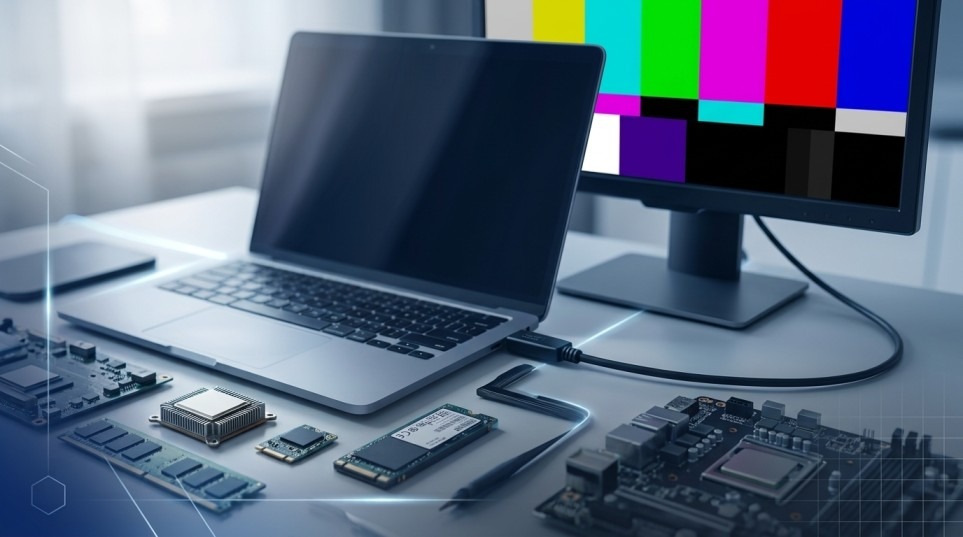
- Connect an external monitor via HDMI or the available video output. If the external display works, the internal screen or its connection is the issue; if it doesn’t, the problem is more likely with the motherboard, RAM, or boot process.
- Listen for POST beeps or feel for normal fan behavior a fan that spins briefly then stops, or repeated beep patterns, often indicates a hardware failure being caught during the power on self test.
- Reseat the RAM if accessible power off completely, remove and firmly reseat RAM sticks, since improperly seated RAM is a surprisingly common cause of a no display boot failure.
- Try booting into BIOS/UEFI (typically by pressing a specific key like F2, F10, or Del immediately at power on) if BIOS displays normally but Windows doesn’t load, this points to a software/OS issue rather than hardware.
- Disconnect all peripherals (USB drives, external monitors, docking stations) and try again, since a peripheral conflict can occasionally block normal boot.
MacBook Checklist
- Connect an external display to determine whether the internal screen itself, or something further upstream, is the problem.
- Try an NVRAM/PRAM reset (on Intel based Macs) by holding Command+Option+P+R at startup for about 20 seconds this resets certain settings that can occasionally block normal startup.
- Boot into Safe Mode by holding Shift during startup, which can bypass software conflicts that block a normal boot.
- Listen for startup chime or fan behavior on Apple Silicon Macs, a startup chime may not be present by default, so focus on fan sound and any indicator lights instead.
- Check for a black screen with the cursor visible by moving the trackpad or an external mouse if a cursor appears, the Mac has booted and the issue is display specific rather than a full boot failure.
Quick Reference Table Symptoms and Likely Causes
| Symptom | Likely Cause | First Step |
| No lights, no sound, no fan at all | Dead battery, failed charger, or power circuit failure | Test outlet and try a different cable/adapter |
| Charging light doesn’t illuminate | Charging port or internal power circuit failure | Inspect port for damage or debris |
| Fan spins, lights on, but no display | Display, GPU, or RAM issue | Connect an external monitor to isolate the cause |
| Beeping pattern at startup | Hardware failure caught by POST | Note the beep pattern and consult manufacturer documentation |
| External display works, internal doesn’t | Internal screen or its cable/connector | Internal screen replacement likely needed |
| Neither internal nor external display works | Motherboard, GPU, or RAM issue | Professional diagnosis recommended |
| Powers on, cursor visible on black screen | Booted successfully; display/graphics driver issue | Try Safe Mode or reseat display connection |
| Laptop was recently dropped or exposed to liquid | Physical or liquid damage to internal components | Stop use immediately; professional diagnosis required |
When It’s Time to Stop Troubleshooting and Call a Technician
Stop working through the checklist and bring the laptop in if:
- Neither the internal nor an external display shows anything, even after a hard reset
- You hear a specific beep pattern or repeated clicking sound
- The laptop was recently dropped, exposed to liquid, or shows physical damage
- The battery or a component smells unusual, feels hot, or the case appears warped or swollen
- You’ve completed every step in the relevant checklist above with no change
Opening a laptop to check internal components without the right tools risks further damage, and modern ultra thin laptops in particular often require specialized tools just to access internal parts safely. At that point, a professional diagnostic that isolates the exact failed component rather than continued guessing is the faster and safer path, whether it’s general laptop repair in Regina or MacBook repair in Regina for Apple specific hardware.
Frequently Asked Questions
How do I know if it’s the battery or the charger?
If the laptop powers on and runs normally while plugged in but won’t turn on unplugged, the battery is very likely the cause. If it won’t power on even while plugged in with a known good cable, the issue is more likely the charging port or internal power circuit.
What does a beeping sound at startup mean?
Most laptop manufacturers use specific beep patterns (a certain number of beeps, or beeps in groups) to indicate which component failed the power on self test commonly RAM, the motherboard, or the display. The exact pattern and its meaning vary by manufacturer, so checking your specific model’s documentation is the fastest way to interpret it.
Can I fix a laptop that won’t turn on myself?
Some causes a dead battery, a bad cable, unseated RAM are safely fixable at home if you’re comfortable opening the case. Anything involving the motherboard, internal power circuit, or liquid damage is best left to a professional, since incorrect handling can turn a repairable issue into a non repairable one.
Is it normal for a MacBook to take a while to respond after being fully dead?
Yes. If the battery was completely depleted, some MacBooks need a period of passive charging (sometimes 20–30 minutes) before any charging indicator or response appears, even though nothing seems to be happening at first.
My laptop’s fan runs but nothing shows on screen is this fixable?
Often, yes. This pattern usually points to a display, GPU, or RAM issue rather than a fully failed motherboard, and these are generally repairable, especially if an external display test shows the system is otherwise booting normally.
Does a laptop that won’t turn on always mean data loss?
Not necessarily. In most cases even hardware failures like a dead motherboard the hard drive or SSD itself can often be removed and its data recovered separately, even if the laptop itself needs significant repair or replacement.
How much does laptop diagnostic testing cost?
Most shops, including ours, offer free diagnosis to identify the exact cause before quoting any repair cost, so you’ll know what’s wrong and what it costs before agreeing to anything.
Get a Free Diagnostic
If you’ve worked through the checklist above and your laptop still won’t turn on, it’s worth having it professionally diagnosed rather than continuing to guess. We offer free diagnosis and laptop repair in Regina for both Windows laptops and MacBook repair in Regina for Apple hardware. Get an instant quote or call (306) 569 6266.
LEAVE A COMMENT